
If you’re still copying offers into emails, going back and forth over revisions, or waiting for someone to put specials on your website, this walkthrough shows how that work can move through a DealerClaw agent.
Eric sends a voice request in Slack, reviews the desktop and mobile slides, and approves the upload. The agent handles the website work, then checks the published result.
A homepage slide is one place an offer needs to go. The same approach could extend across your ads, website banners, email, and the rest of a campaign.
1. Ask for the special by voice
“Build a website slide for the latest 2026 Tundra offer that we can put on our homepage.” That’s the request in the recording. Eric sends it as a voice message, and the agent returns a transcript in Slack.
The agent checks Toyota’s offer information and brings back the financing terms and disclaimer with the creative. Eric also explains that the agent can use offers your dealership supplies.
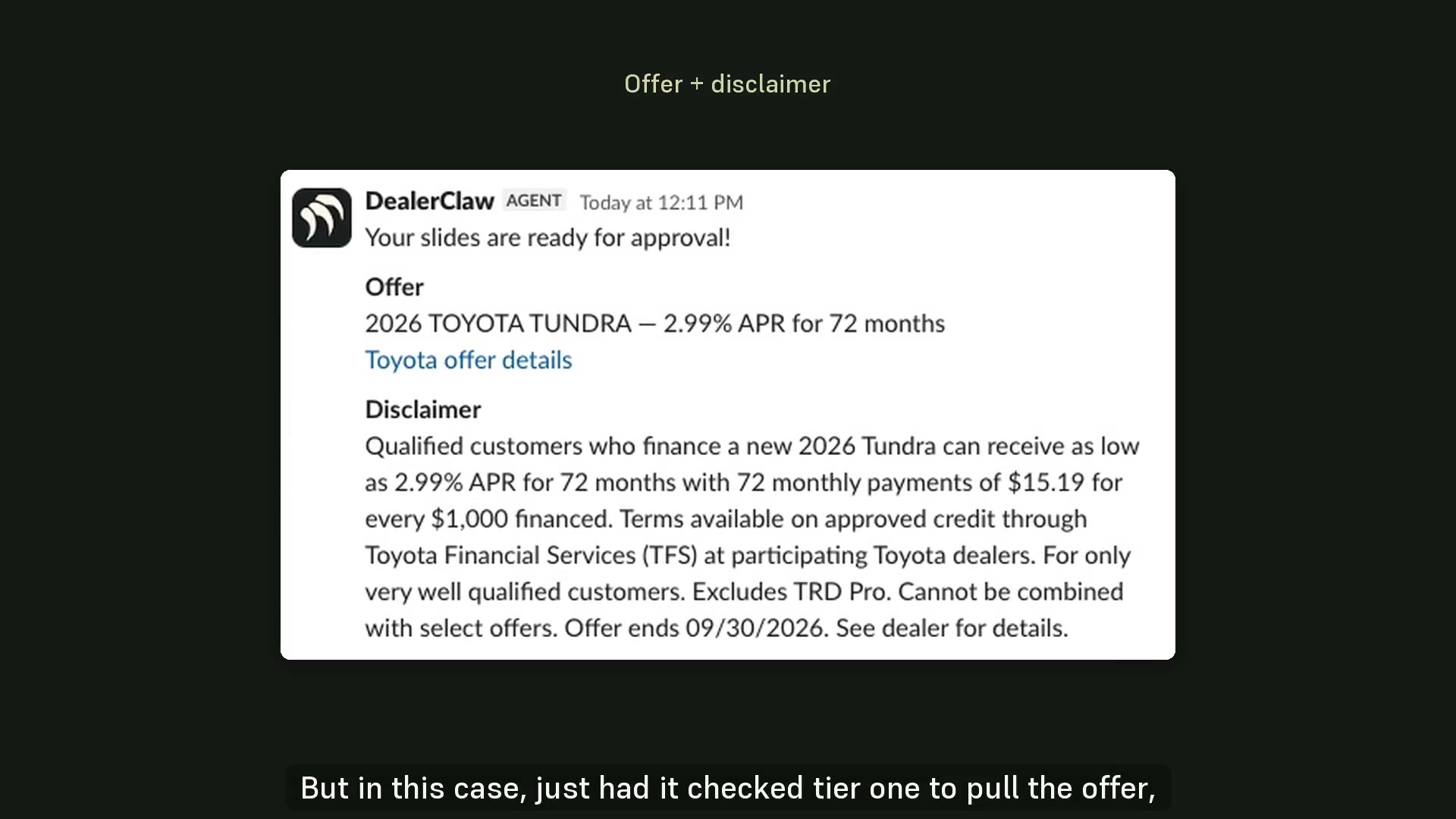
The request can be short because the agent has dealership context to work with. In this example, Eric points out that the creative suits his Chicago-area location. The walkthrough takes place in Slack; he also discusses using iMessage to talk to the agent.
2. Review both sizes and approve
The agent returns separate desktop and mobile layouts. Eric checks the disclosure, vehicle image, and design before moving forward.
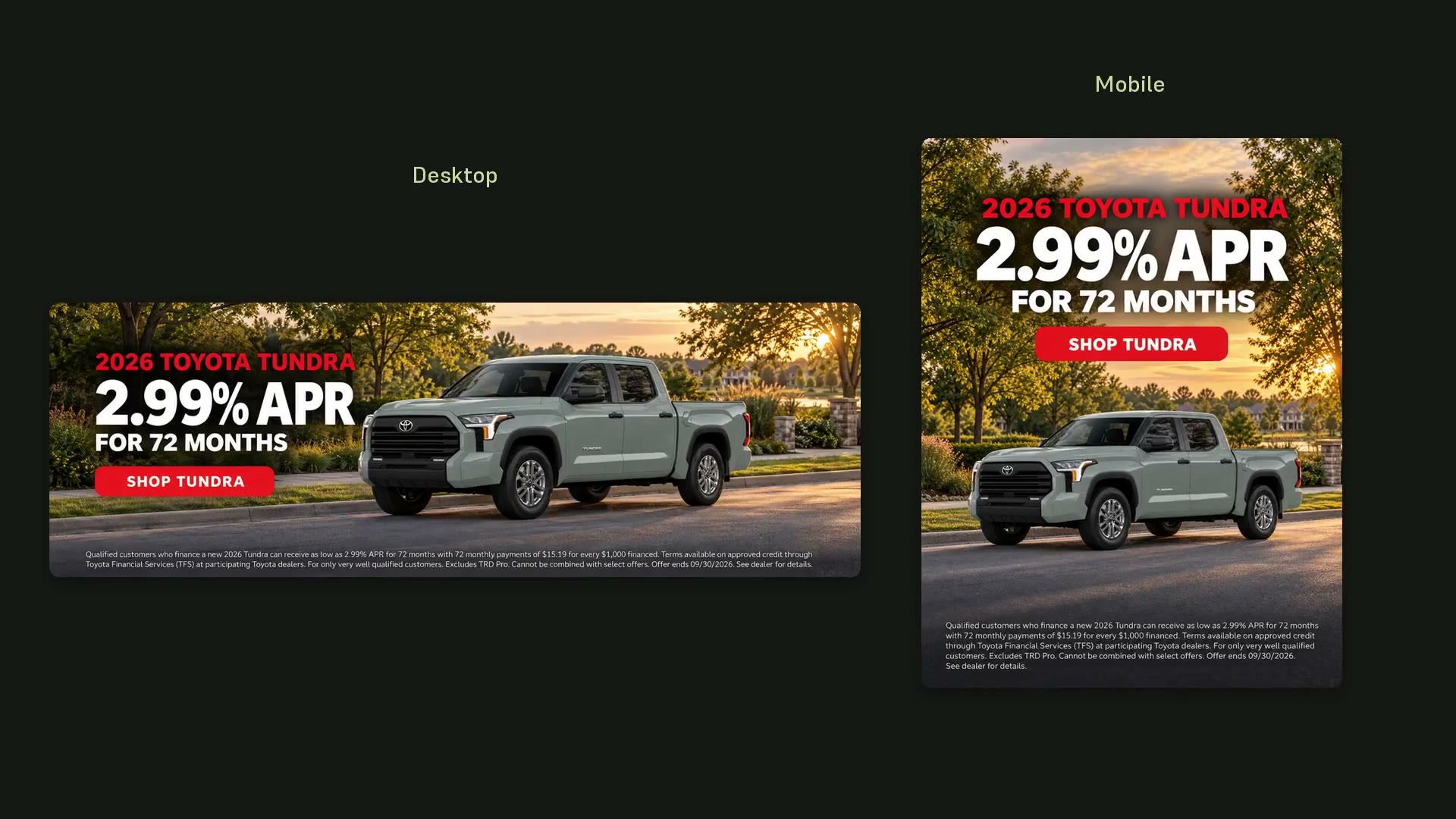
The response offers three choices: approve and upload, change the offer, or change the design. Eric chooses “approve and upload to site.” That approval moves the job from creative review to website work.
For your dealership, this is where your team checks that the offer, wording, images, and destination are right before anything goes on the website.
3. Let the agent handle the upload
After approval, the recording switches to the demo website’s content management system. The agent signs in, opens the slides section, and fills in the placement details.
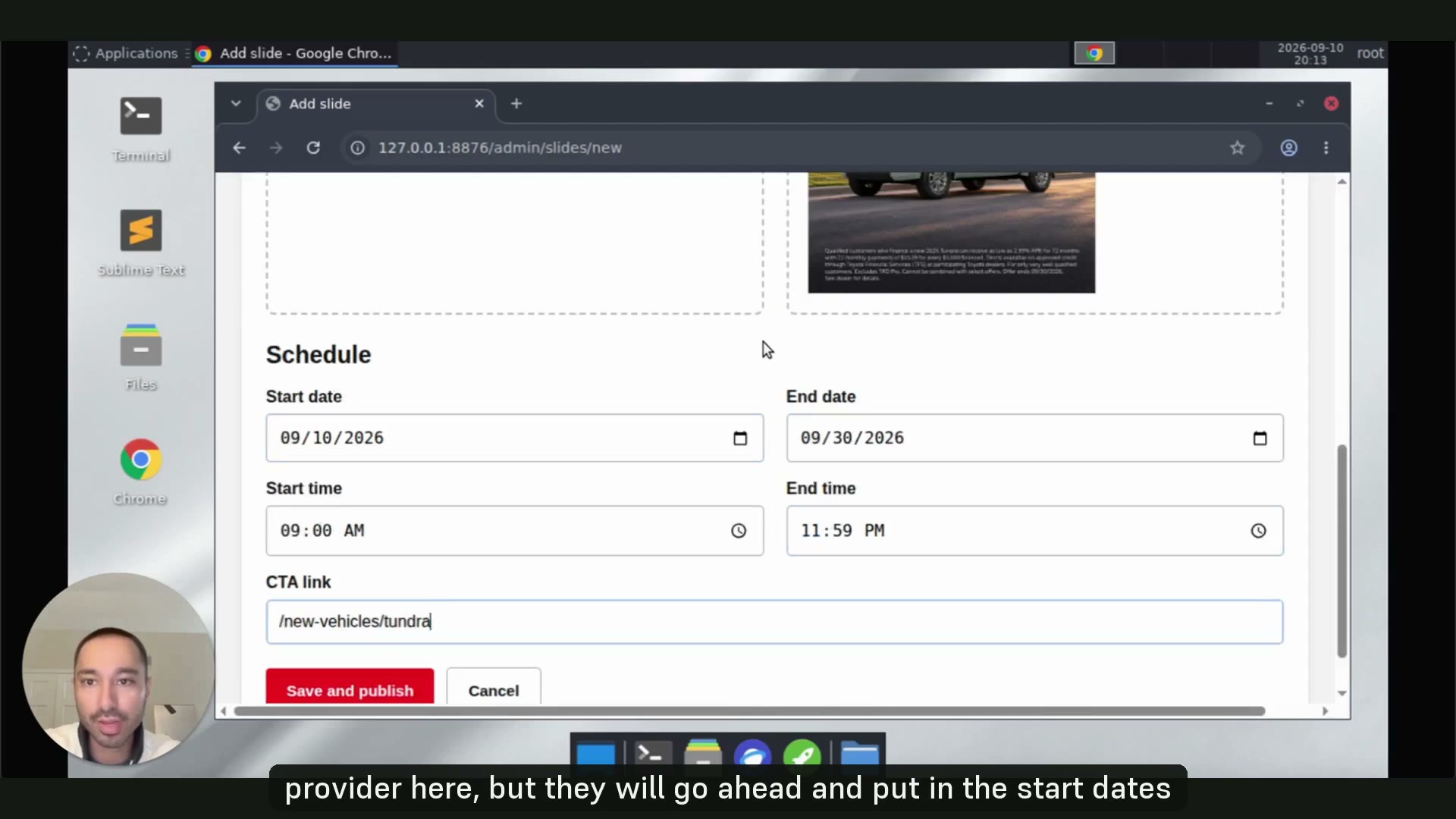
The walkthrough shows the image uploads, start and end dates, and the link behind the slide’s button. The agent saves and publishes the slide while Eric narrates what it is doing.
This example uses the website’s browser interface. A dealership setup would need the right access and instructions for its own website provider, creative sizes, campaign dates, and approval process.
4. Check the homepage
The final step is checking the website itself. The video compares the previous homepage slide with the approved Tundra creative, then shows the updated demo homepage.
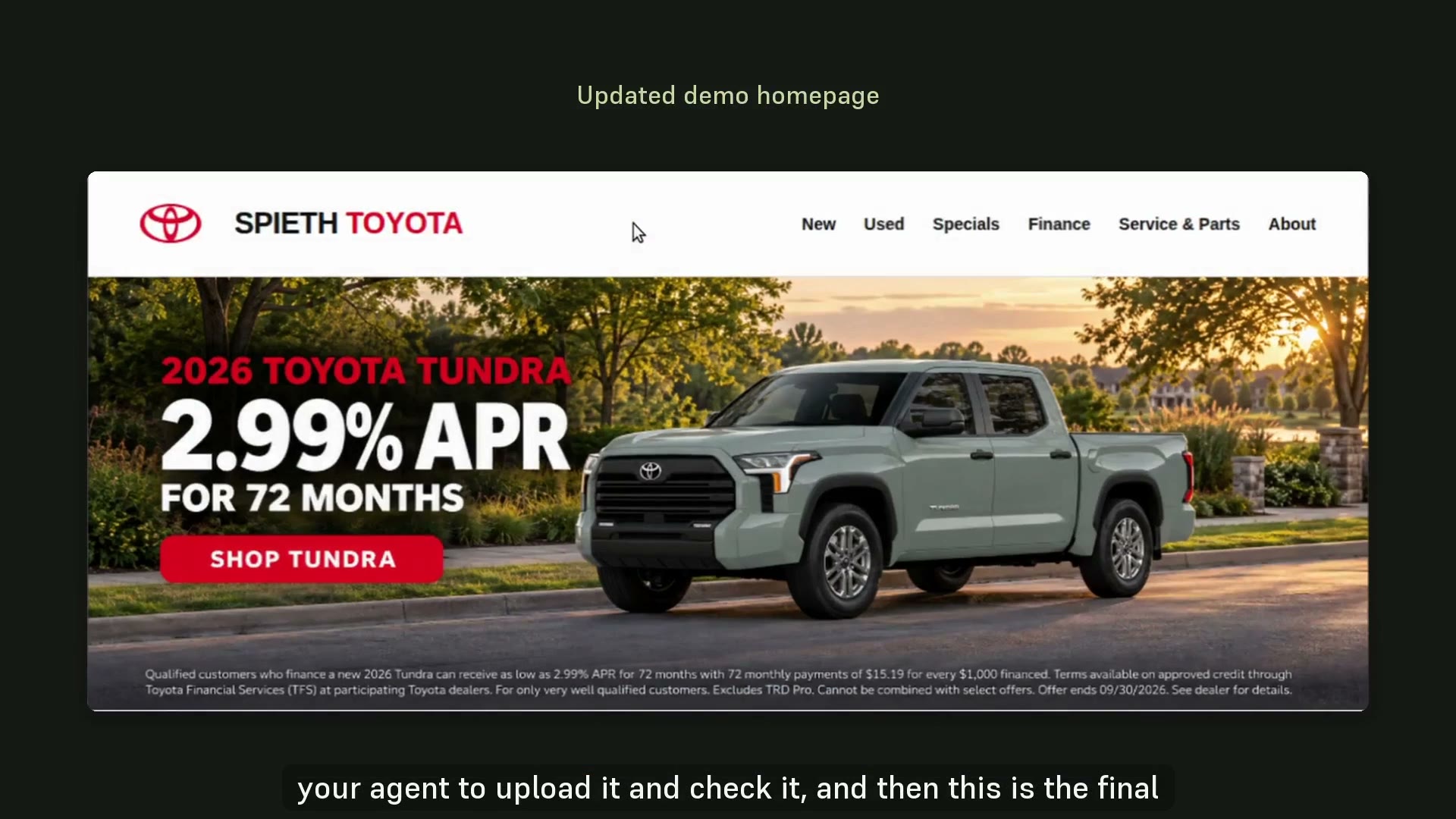
Your team can request the work and approve it in the conversation. The agent uploads the creative and checks the published result.
From a homepage slide to a full campaign
A campaign also depends on what shoppers and search systems can understand on the destination page. Our dealership structured-data study looks at vehicle details, and our AI-access study examines public discovery signals.
A new offer rarely lives in just one place. You may need a homepage slide, Facebook ads, Google ads, banners throughout your website, and an email to customers. Each placement needs the right wording, dimensions, destination, and campaign dates.
Use the same approved offer and creative direction across the campaign, with each version adapted to its placement.
The video demonstrates website slides. The same request, review, and publishing workflow could be adapted to:
- Facebook and Instagram ads: develop the images and ad copy around your approved offer, with versions suited to the placements you choose.
- Google ads: prepare search ad headlines and descriptions, or image creative for display campaigns, with messaging that matches the page shoppers land on.
- Inline website banners: bring the same promotion into relevant pages across your site, with layouts that fit each space.
- VRP banners: put offer messaging alongside the inventory shoppers are browsing, with links to the relevant vehicles or next step.
- Email and organic social: adapt the campaign into an email, social post, or reminder using the same offer terms and creative direction.
- Campaign landing pages: give shoppers a destination that matches the ad they clicked, including the offer details, vehicles, and call to action.
Imagine asking: “Take this month’s Tundra offer and prepare the website banners, Facebook ads, Google ad copy, and customer email. Show me everything before it goes live.” Your team could review the campaign together, request changes in one conversation, and approve the next steps.
Publishing would depend on the tools your dealership uses and the access put in place. Your team would approve the offer, creative, timing, and any ad spend. DealerClaw’s role is to build and manage that workflow around your dealership, from a single slide to a coordinated campaign.
These are real workflow captures from a demo for fictional Spieth Auto Group and the slides are uploaded to a generic website CMS. The screenshots above come directly from the final video. The offers shown belong to this recorded demonstration; confirm current terms for any new campaign.
Read the walkthrough summary
0:00 · Introduction
Eric introduces a DealerClaw demo that takes a dealership website offer from a voice request through creative review, upload, and a check of the published slide.
0:34 · Voice request and offer research
Eric requests a homepage slide for the latest 2026 Tundra offer through a Slack voice message. The agent transcribes the request, checks Toyota’s offer and disclaimer, and prepares separate desktop and mobile versions. Eric also discusses using dealership-supplied offers and iMessage for agent requests.
1:47 · Review and approval
Eric checks the disclaimer, vehicle image, local design context, and mobile layout. The agent offers three choices: approve and upload, change the offer, or change the design. Eric approves the upload.
2:29 · Upload and homepage check
The agent signs into the demo CMS, enters the campaign dates and button destination, and uploads both image sizes. It publishes the approved slide and checks the updated demo homepage while Eric narrates the work.
3:25 · Next steps
Eric invites viewers to contact DealerClaw to discuss their current workflow and opportunities for an agent to help.