
Connect Microsoft Copilot to DealerClaw
Add DealerClaw to an agent in Microsoft Copilot Studio using OAuth and automatic discovery.
Use Microsoft Copilot Studio
This guide connects DealerClaw to an agent you manage in Copilot Studio. The Microsoft Copilot name on our tools page refers to this setup. A consumer Copilot chat or a GitHub Copilot installation does not use these steps.
You need permission to edit the agent and create its connection in your Power Platform environment, plus a DealerClaw account. Your administrator’s connector and data policies still apply.
Add DealerClaw to your agent
1. Open the MCP wizard
In your Copilot Studio agent, open Tools. Choose Add a tool, then New tool, then Model Context Protocol.
2. Enter the server details
Enter DealerClaw for the server name. Use Dealership tools for offer research, creative handoffs and performance review as the description. Paste this server URL:
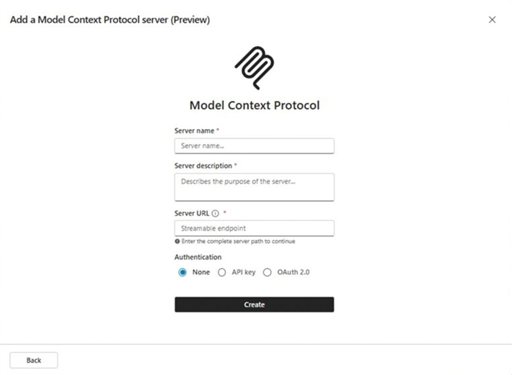
3. Choose OAuth with dynamic discovery
Select OAuth 2.0, then Dynamic discovery. DealerClaw advertises the discovery and registration endpoints this option requires. Select Create, then Next if shown.
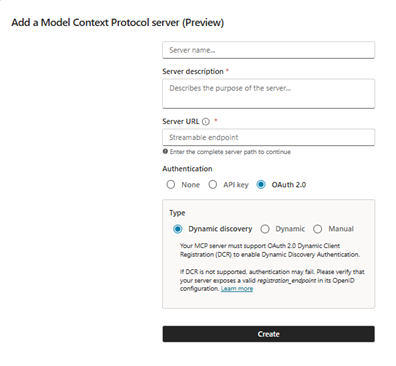
4. Connect DealerClaw and add it to the agent
In the Add tool dialog, select Create a new connection, or choose an existing DealerClaw connection. Complete the DealerClaw sign-in and review the requested permissions. Select Add to agent to finish.
Review the tools in your agent before sharing or publishing it. Your organization decides who can use the agent and how its connections are made available.
If the connection is unavailable
I only have the regular Copilot chat
These steps require Copilot Studio and access to an agent you can edit. Ask your Microsoft administrator for the appropriate environment and permissions.
Dynamic discovery fails
Confirm the URL ends in /mcp and authentication is OAuth 2.0. Have your administrator check whether the environment permits the DealerClaw and DealerClaw sign-in domains. Contact us with the exact error if discovery still fails; do not substitute an API key or invent client credentials.
A policy blocks the connector
Copilot Studio’s MCP connections are governed by Power Platform connector and data policies. Your environment administrator must review the policy; changing the server URL will not resolve an organizational restriction.
Sources and screenshots
Instructions checked October 15, 2026. Product labels can change.
Need help connecting?
Contact DealerClaw with the client you are using and the error message you see. Leave passwords, tokens and client secrets out of your message.