
Connect Claude to DealerClaw
Add DealerClaw to Claude on the web or desktop, with separate instructions for Claude Code.
Before you start
Sign in to your DealerClaw account and finish your business setup. Use a Claude account with custom connectors enabled. In a managed workspace, an owner may need to add DealerClaw before members can connect their own accounts.
Claude on the web or desktop
The screenshots below show the actual Claude desktop interface. The remote connector also belongs to your Claude account on the web.
1. Open the custom connector form
In Claude, open Customize, then Connectors. Select + Add and Add custom connector.

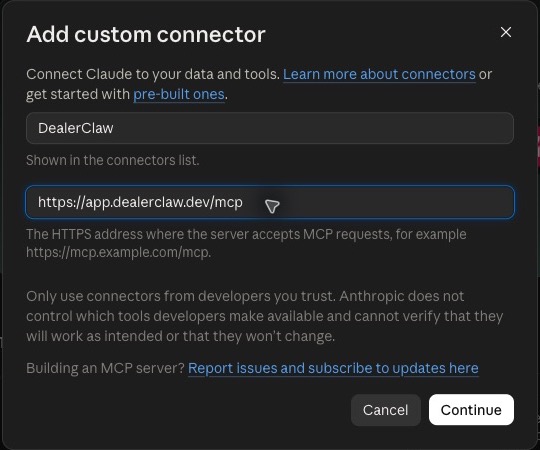
2. Enter DealerClaw’s server address
Set the name to DealerClaw. Paste the complete URL below into MCP server URL, then select Continue.
3. Choose automatic registration and sign in
Review the detected authentication settings and continue. Choose Sign in now. If Claude asks which OAuth client to use, select Register automatically. Add the connector, then sign in with the account you use for DealerClaw and review the requested permissions.
DealerClaw supports dynamic client registration. You do not need to create an OAuth client or paste a client secret. If Claude offers its published identity, use Register automatically for this connection.
4. Enable DealerClaw in your conversation
Open a Claude chat. Select the + beside the message box, open Connectors, and enable DealerClaw. You can now ask for a dealership task in your own words. Review any tool-specific approval before work begins.
Using Claude Code instead?
First open /mcp in Claude Code and look for DealerClaw. Current versions can load your Claude account’s connectors when you are signed in with that subscription account. If it is already present, use the existing connection.
For a direct local setup, run this in your terminal:
claude mcp add --transport http --scope user dealerclaw https://app.dealerclaw.dev/mcpOpen Claude Code, enter /mcp, select dealerclaw, and follow its authentication option. Complete the DealerClaw sign-in in your browser, then return to Claude Code.
--scope user makes this local configuration available across your projects. API-key and third-party-provider sessions do not automatically load Claude account connectors, so use the direct setup when needed. Do not add a duplicate if /mcp already lists DealerClaw.
If something is missing
Claude says the URL already exists
Open Customize / Connectors / Yours and use the existing DealerClaw connection. If it needs sign-in, reconnect it there. Creating a second connection to the same URL is unnecessary.
I cannot add a custom connector
Check your plan and workspace permissions. In Team or Enterprise, ask an owner to add DealerClaw in the organization’s connector settings, then connect your own DealerClaw account.
DealerClaw is connected but unavailable in a chat
Enable the connector in that conversation’s + menu. For Claude Code, check /mcp and the active login shown by /status. Account connectors and direct local servers have different configuration paths.
Sources and screenshots
Instructions checked October 15, 2026. Product labels can change.
Need help connecting?
Contact DealerClaw with the client you are using and the error message you see. Leave passwords, tokens and client secrets out of your message.