
Connect ChatGPT and Codex to DealerClaw
Follow the ChatGPT plugin walkthrough, or use the desktop and terminal setup for Codex.
Choose the setup for where you work
For ChatGPT on the web, add a custom MCP plugin. For local Codex work, use the MCP server settings or terminal commands below. A local Codex configuration does not by itself create a plugin in ChatGPT web.
You need a DealerClaw account with business setup completed. Custom plugins and MCP connections must also be allowed by your OpenAI account and workspace.
ChatGPT on the web
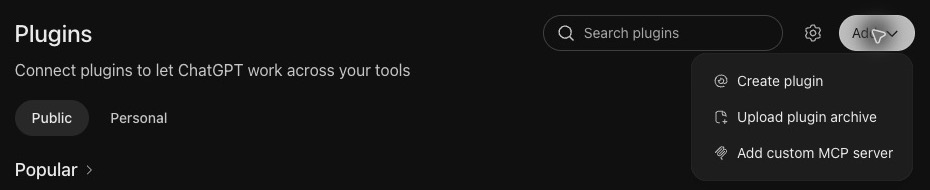
1. Open the Plugins directory
While signed in, open ChatGPT Plugins. Select Add (the plus button), then Add custom MCP server.
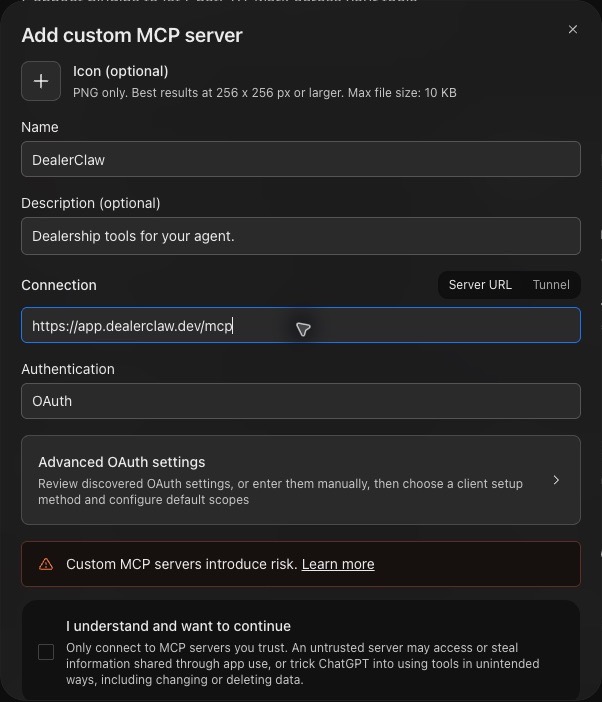
2. Fill in the connection
Use DealerClaw as the name. The description can be Dealership tools for your agent. Keep Server URL selected, enter the address below, and choose OAuth for authentication.
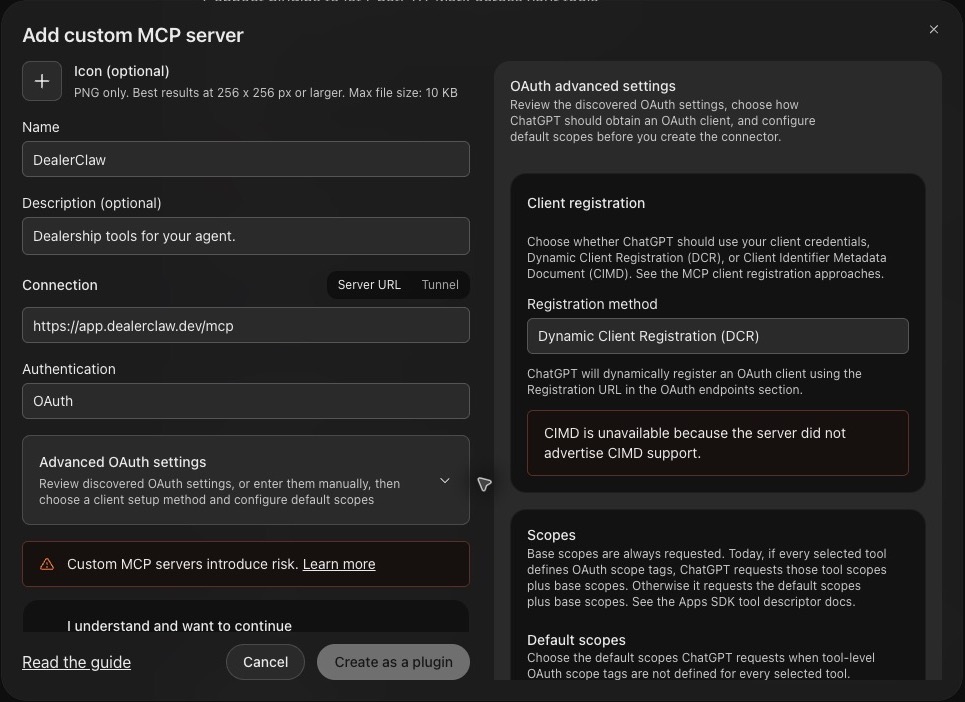
3. Review automatic OAuth registration
Open Advanced OAuth settings and let discovery finish. Registration method should be Dynamic Client Registration (DCR). DealerClaw’s authorization and registration endpoints are filled in automatically.
A message that CIMD is unavailable is expected for this server. Use DCR; leave the discovered settings in place rather than entering your own client ID or secret.
4. Create the plugin and connect your account
Review ChatGPT’s connection warning. If you agree, select I understand and want to continue, then Create as a plugin. Open the resulting personal plugin and install it.
Complete the DealerClaw sign-in when prompted and review the permissions. Use your DealerClaw account, even if its sign-in email differs from your ChatGPT account.
5. Select DealerClaw in a conversation
Start a new ChatGPT Work conversation. Type @ in the message box and select DealerClaw. Ask for the dealership task you want help with. The available tools depend on your account and the permissions you approved.
Codex on your computer
The local desktop app, Codex CLI and IDE extension share MCP configuration on the same Codex host. This differs from creating a ChatGPT web plugin.
Desktop settings
Open Settings / MCP servers / Add server. Name the server dealerclaw, select Streamable HTTP, and enter https://app.dealerclaw.dev/mcp. Save it, restart when prompted, then select Authenticate if sign-in is required. Complete the DealerClaw browser authorization.
Terminal setup
If you use the Codex CLI, run:
codex mcp add dealerclaw --url https://app.dealerclaw.dev/mcpIf authorization has not already opened, run:
codex mcp login dealerclawFinish signing in to DealerClaw in your browser and return to Codex. Use /mcp inside Codex to view its configured servers. These commands use the installed Codex CLI; you do not need a separate OpenAI API key for the DealerClaw connection.
A remote Codex host has its own configuration. If you change machines or execution hosts, check that host’s MCP settings.
If setup stops
Add custom MCP server is missing
Confirm you are signed in to the intended ChatGPT workspace. Custom MCP plugin access is controlled by account availability and workspace policy; ask your administrator if the Add option is unavailable.
The form asks for a client ID or secret
Check the full server URL, select OAuth, and wait for discovery in Advanced OAuth settings. Choose Dynamic Client Registration (DCR). DealerClaw advertises a registration endpoint, so customer-created credentials are not required.
I installed the plugin but cannot use it in chat
Start a new Work conversation and select DealerClaw with @. A plugin being created, installed and signed in are separate steps. If your account asks you to connect, complete the DealerClaw sign-in.
Codex works but ChatGPT web does not show DealerClaw
A local MCP entry is configuration for that Codex host. Follow the ChatGPT plugin steps above for ChatGPT web, or use the local Codex client where you added the server.
Sources and screenshots
Instructions checked October 15, 2026. Product labels can change.
Need help connecting?
Contact DealerClaw with the client you are using and the error message you see. Leave passwords, tokens and client secrets out of your message.